> ## Documentation Index
> Fetch the complete documentation index at: https://docs.acrity.io/llms.txt
> Use this file to discover all available pages before exploring further.
# Audit Trail
> Review-run execution history and diagnostics for your workspace: completed, skipped, error, and in-progress runs.
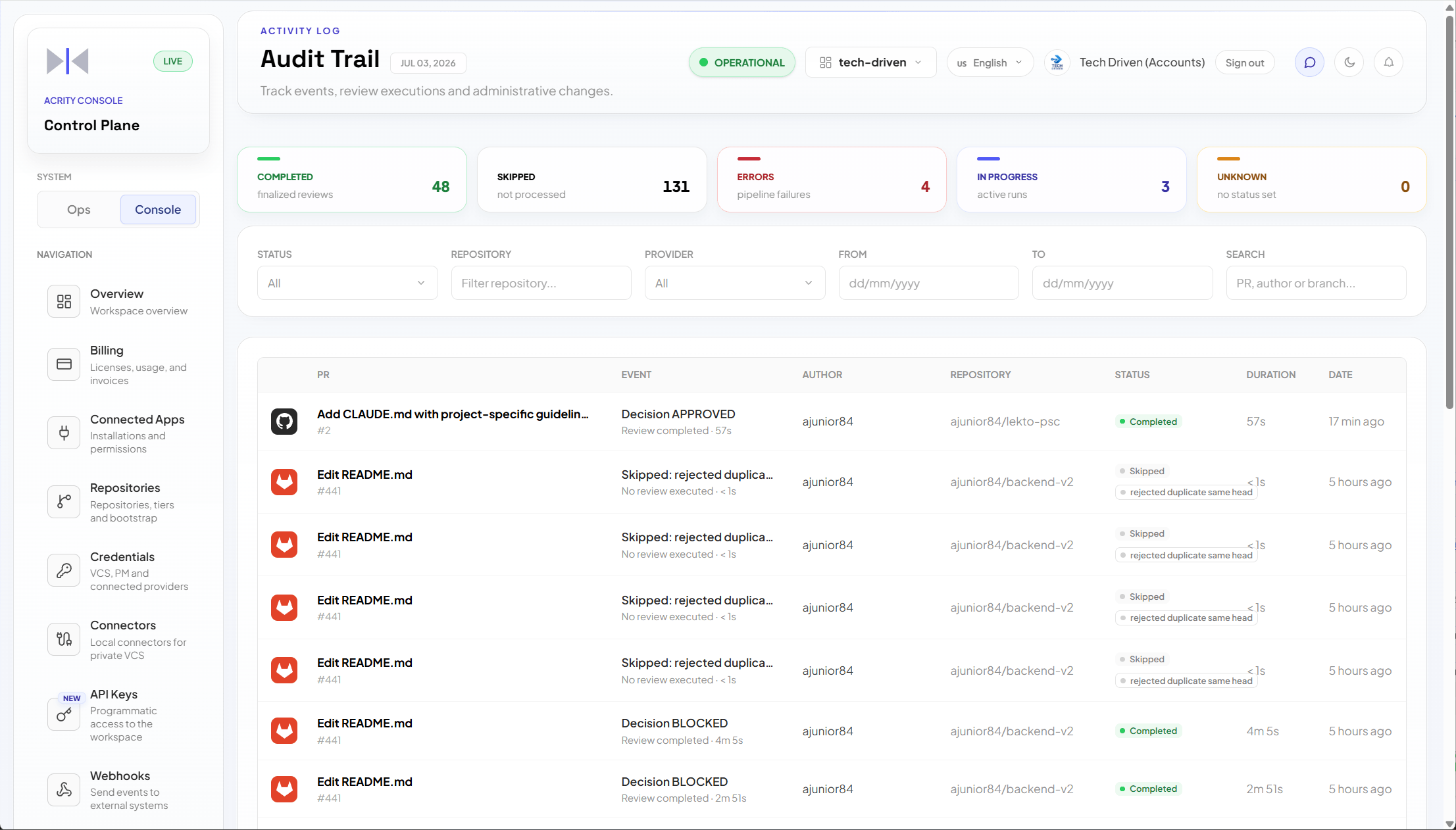
Audit Trail, also called the Activity Log, records review-run executions in your workspace. Each entry is a single review run with its outcome, completed, skipped, error, or in progress, plus the run details you need to diagnose it.
Use `Console > Audit Trail` to search runs, filter by period, and open a run to see its details.
Audit Trail is a diagnostics log for review runs. It does **not** record configuration changes, member changes, or API-key changes. Those actions are not tracked here.
Track review status, decisions, and findings in the Ops dashboard. Use Audit Trail for review-run execution history and diagnostics.
 ## When to use
Use Audit Trail to:
* investigate why a review run failed, was skipped, or is still in progress;
* confirm whether a review ran for a given PR/MR;
* inspect run details and diagnostics for a specific run;
* review execution history for a repository;
* support internal audits of review activity.
Audit Trail does not answer "who changed this setting?" or "who was added to the workspace?". It only reflects review-run executions.
## Who can access
Audit Trail requires a Workspace admin (platform admins also have access). Roles are fixed capability sets defined by Acrity.
## Run outcomes
Each run resolves to one of the following states:
| Outcome | Meaning |
| ----------- | ------------------------------------------------------------------------------------------- |
| Completed | The review run finished and produced a result. |
| Skipped | Trigger conditions were not met, so no review ran (for example, an ignored branch or path). |
| Error | The run started but could not finish. Open it for the diagnostic detail. |
| In progress | The run is still executing. |
```mermaid theme={null}
stateDiagram-v2
[*] --> InProgress: Run triggered
[*] --> Skipped: Trigger conditions not met
InProgress --> Completed: Review finished
InProgress --> Error: Run failed
```
## Common filters
| Filter | Purpose |
| ---------- | ---------------------------------------------------------------------- |
| Period | Restricts runs by start and end date. |
| Status | Filters by run outcome: completed, skipped, error, or in progress. |
| Repository | Filters runs associated with a specific repository. |
| Provider | Filters by code provider or integration origin. |
| Search | Finds runs by displayed text or identifier, such as a PR/MR reference. |
## Investigate a missing review
Go to `Console > Audit Trail`.
Choose a range that includes the expected review time.
Select the repository related to the PR/MR.
Look for error, skipped, or in-progress runs.
Open the run to see available information and the recommended action.
If the run points to a credential, webhook, connector, or branch rule, adjust the corresponding screen.
## Best practices
* Always filter by period before investigating.
* Use repository as the main filter when the issue involves review activity.
* Check alerts in source menus first, such as Credentials or Repositories.
* Record relevant findings in your internal process.
* Remember that configuration, member, and API-key changes are not in this log; use the corresponding Console screen instead.
## Common issues
| Symptom | What to check |
| ------------------------------------ | ---------------------------------------------------------------------------------- |
| I cannot find an expected run | Expand the period, remove filters, and confirm the selected workspace. |
| Run shows a credential failure | Go to `Console > Credentials` or `Console > Connected Apps`. |
| Run shows a webhook issue | Go to `Console > Repositories` or `Console > Webhooks`, depending on webhook type. |
| Run indicates a connector is offline | Go to `Console > Connectors` and revalidate the local installation. |
| I cannot see full run details | The view can depend on run type. |
## What not to publish in external audits
When exporting or sharing evidence outside your organization:
* remove tokens, secrets, internal URLs, and unnecessary personal data;
* share only the relevant period and runs;
* follow your organization's security policy;
* use approved channels for communication with support.
Details about data handling are in [Data handling](/en/security/data-handling).
## When to use
Use Audit Trail to:
* investigate why a review run failed, was skipped, or is still in progress;
* confirm whether a review ran for a given PR/MR;
* inspect run details and diagnostics for a specific run;
* review execution history for a repository;
* support internal audits of review activity.
Audit Trail does not answer "who changed this setting?" or "who was added to the workspace?". It only reflects review-run executions.
## Who can access
Audit Trail requires a Workspace admin (platform admins also have access). Roles are fixed capability sets defined by Acrity.
## Run outcomes
Each run resolves to one of the following states:
| Outcome | Meaning |
| ----------- | ------------------------------------------------------------------------------------------- |
| Completed | The review run finished and produced a result. |
| Skipped | Trigger conditions were not met, so no review ran (for example, an ignored branch or path). |
| Error | The run started but could not finish. Open it for the diagnostic detail. |
| In progress | The run is still executing. |
```mermaid theme={null}
stateDiagram-v2
[*] --> InProgress: Run triggered
[*] --> Skipped: Trigger conditions not met
InProgress --> Completed: Review finished
InProgress --> Error: Run failed
```
## Common filters
| Filter | Purpose |
| ---------- | ---------------------------------------------------------------------- |
| Period | Restricts runs by start and end date. |
| Status | Filters by run outcome: completed, skipped, error, or in progress. |
| Repository | Filters runs associated with a specific repository. |
| Provider | Filters by code provider or integration origin. |
| Search | Finds runs by displayed text or identifier, such as a PR/MR reference. |
## Investigate a missing review
Go to `Console > Audit Trail`.
Choose a range that includes the expected review time.
Select the repository related to the PR/MR.
Look for error, skipped, or in-progress runs.
Open the run to see available information and the recommended action.
If the run points to a credential, webhook, connector, or branch rule, adjust the corresponding screen.
## Best practices
* Always filter by period before investigating.
* Use repository as the main filter when the issue involves review activity.
* Check alerts in source menus first, such as Credentials or Repositories.
* Record relevant findings in your internal process.
* Remember that configuration, member, and API-key changes are not in this log; use the corresponding Console screen instead.
## Common issues
| Symptom | What to check |
| ------------------------------------ | ---------------------------------------------------------------------------------- |
| I cannot find an expected run | Expand the period, remove filters, and confirm the selected workspace. |
| Run shows a credential failure | Go to `Console > Credentials` or `Console > Connected Apps`. |
| Run shows a webhook issue | Go to `Console > Repositories` or `Console > Webhooks`, depending on webhook type. |
| Run indicates a connector is offline | Go to `Console > Connectors` and revalidate the local installation. |
| I cannot see full run details | The view can depend on run type. |
## What not to publish in external audits
When exporting or sharing evidence outside your organization:
* remove tokens, secrets, internal URLs, and unnecessary personal data;
* share only the relevant period and runs;
* follow your organization's security policy;
* use approved channels for communication with support.
Details about data handling are in [Data handling](/en/security/data-handling).