> ## Documentation Index
> Fetch the complete documentation index at: https://docs.acrity.io/llms.txt
> Use this file to discover all available pages before exploring further.
# Billing
> Manage the workspace plan status, trial, usage, wallet, invoices, auto-recharge, and financial limits.
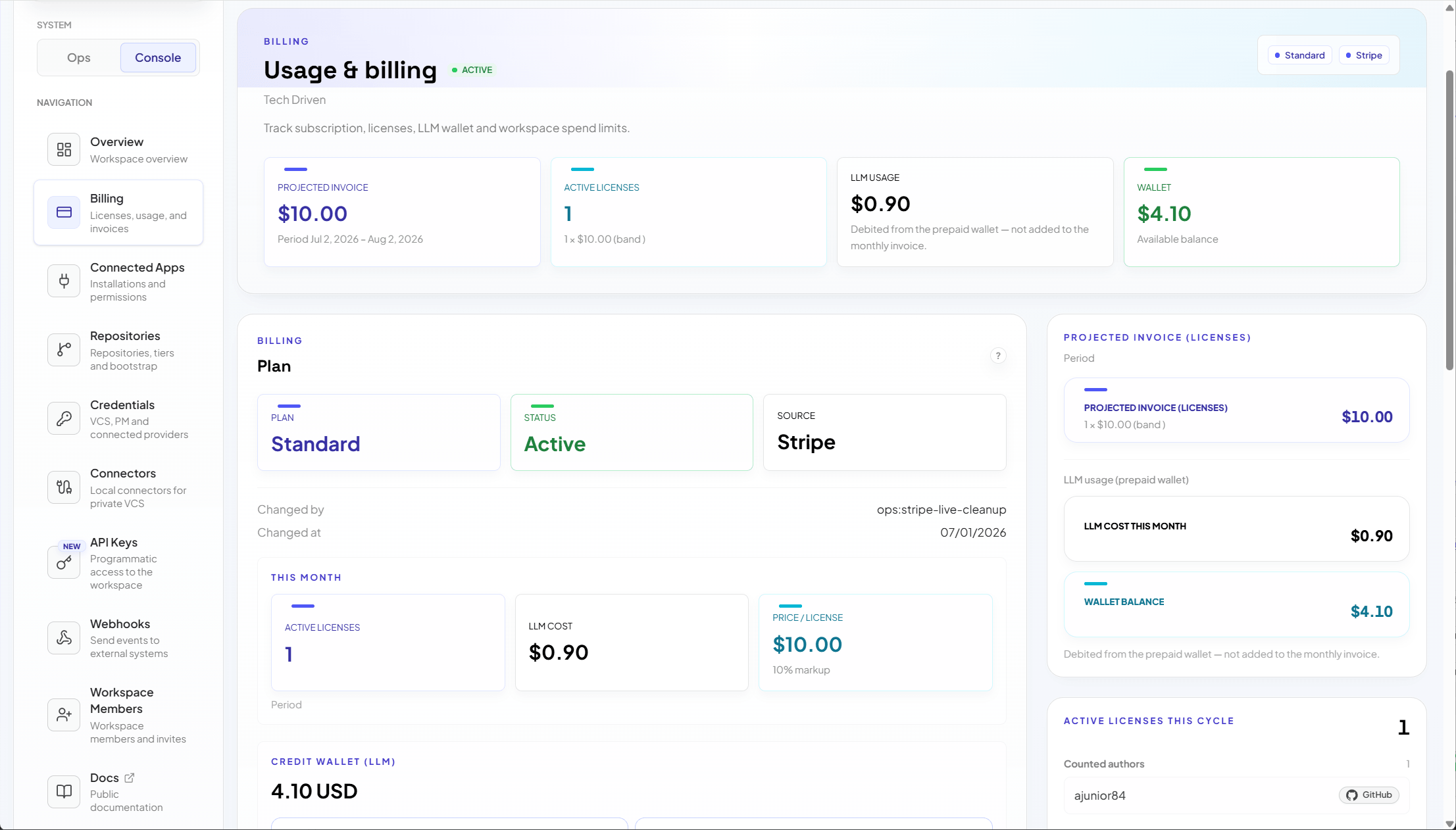
The `Billing` area gathers the workspace's financial information: plan status, trial, usage, wallet, auto-recharge, invoices, payment portal, and spending limits.
Use `Console > Billing` for workspace billing operations.
 ## Who can access
Billing is available to two roles:
* Workspace admin: full access to billing, including the trial, wallet, auto-recharge, and spend cap.
* Billing Manager: manages billing without administering technical settings.
Roles are fixed capability sets defined by Acrity, not organization-configurable. Which actions appear depends on your role and the workspace's current financial state.
## Billing overview
The screen can show:
* current plan and subscription status;
* active or ended trial;
* monthly usage;
* active seats;
* consumption associated with reviews;
* wallet balance;
* auto-recharge settings;
* invoices and receipts;
* payment portal;
* spend cap;
* financial pending items.
## Plan
The plan section shows your current plan and subscription status. Acrity provisions and changes plans for your workspace, so a plan selector is not part of self-serve billing.
To start a new plan, upgrade, downgrade, or change plan terms, contact Acrity. Plan changes are handled by Acrity, not from this screen.
From the plan section you can perform these self-serve actions when they apply to your workspace:
* **Start 14-day trial** — begin the trial when it is available (see [Trial](#trial)).
* **Subscribe** — activate a paid subscription for the plan Acrity has provisioned.
* **Manage payment** — open the Stripe billing portal to update the payment method, view invoices, and manage billing details.
* **Cancel trial** or **Cancel plan** — end the trial or the active subscription according to the displayed options.
* **Resubscribe** — restart a subscription after it was canceled.
* **Resolve & reactivate** — clear a payment or financial pending item and reactivate a suspended or past-due workspace.
Which of these actions appear depends on your subscription status:
```mermaid theme={null}
stateDiagram-v2
[*] --> Trial: Start 14-day trial
Trial --> Subscribed: Subscribe
Trial --> Canceled: Cancel trial
Subscribed --> Canceled: Cancel plan
Subscribed --> PastDue: Payment issue
PastDue --> Subscribed: Resolve & reactivate
Canceled --> Subscribed: Resubscribe
```
## Trial
The trial lets you evaluate Acrity before subscribing.
Trial specifications:
* Length: 14 days.
* Usage caps apply for the duration of the trial.
* One trial per workspace owner.
During the trial:
* track usage against the trial caps;
* invite only the users you need;
* connect representative repositories;
* validate your review policies;
* subscribe before the trial ends if you want continuity.
When the trial expires or reaches a cap, billed operations can be restricted until you subscribe or add funds.
## Wallet
The wallet holds the balance used for billed resources in your workspace.
Use the wallet section to:
* view the balance;
* add a manual top-up;
* configure auto-recharge;
* review the ledger;
* track payment pending items.
Balances and charges are shown in your workspace's presentment currency.
## Manual top-up
Go to `Console > Billing`.
Open the balance or top-up section.
Select an available option or enter an amount when the screen allows it.
Review the currency, amount, fees, and displayed total.
Confirm the top-up and follow the payment flow.
## Auto-recharge
Auto-recharge adds credit automatically when your balance runs low, so reviews are not interrupted by an insufficient balance.
Configure these settings:
| Setting | What it controls |
| ------------------- | ------------------------------------------------------------------------------------------------------------ |
| Threshold | The balance level that triggers a recharge. When the balance falls to or below this amount, a recharge runs. |
| Credit per recharge | The amount of credit added each time a recharge runs. |
| Monthly cap | The maximum total that auto-recharge can add in a billing month. |
Also set the payment method and assign an owner to monitor failed recharges.
Pair auto-recharge with a spend cap to balance uninterrupted reviews with predictable spend.
## Spend cap
The spend cap sets a hard limit on how much your workspace can spend.
Use it when:
* you want predictable spend;
* a team is evaluating Acrity;
* you have a defined monthly budget;
* a temporary workspace needs a hard limit.
When the cap is reached, billed operations are blocked until you raise the cap, add funds, or a new billing period starts.
## Ledger and history
The ledger records every change to your wallet balance. Use it to review:
* credits;
* debits;
* top-ups;
* charges;
* adjustments;
* the usage period;
* associated receipts or invoices.
Filter the ledger by entry type (credit, debit, top-up, charge, adjustment) and by date range to find specific entries. Amounts are shown in your workspace's presentment currency.
Invoices and receipts are available through the Stripe billing portal (**Manage payment**).
## Common issues
| Symptom | What to check |
| ----------------------- | ------------------------------------------------------------------------------------------------- |
| Workspace suspended | Check subscription status, balance, and payment pending items, then use **Resolve & reactivate**. |
| Cannot subscribe | Check your role, the payment method in **Manage payment**, and any portal messages. |
| Top-up does not appear | Wait for processing, then check the ledger. |
| Spend cap blocked usage | Review the configured cap, balance, and monthly spend. |
| Need a different plan | Plan changes are handled by Acrity — contact Acrity. |
## Best practices
* Assign one financial owner per workspace.
* Use the Billing Manager role to separate billing from Workspace admin duties.
* Review spend monthly.
* Set a spend cap for test environments.
* Enable auto-recharge only with a controlled payment method.
* Keep invoices and receipts per your organization's accounting process.
## Who can access
Billing is available to two roles:
* Workspace admin: full access to billing, including the trial, wallet, auto-recharge, and spend cap.
* Billing Manager: manages billing without administering technical settings.
Roles are fixed capability sets defined by Acrity, not organization-configurable. Which actions appear depends on your role and the workspace's current financial state.
## Billing overview
The screen can show:
* current plan and subscription status;
* active or ended trial;
* monthly usage;
* active seats;
* consumption associated with reviews;
* wallet balance;
* auto-recharge settings;
* invoices and receipts;
* payment portal;
* spend cap;
* financial pending items.
## Plan
The plan section shows your current plan and subscription status. Acrity provisions and changes plans for your workspace, so a plan selector is not part of self-serve billing.
To start a new plan, upgrade, downgrade, or change plan terms, contact Acrity. Plan changes are handled by Acrity, not from this screen.
From the plan section you can perform these self-serve actions when they apply to your workspace:
* **Start 14-day trial** — begin the trial when it is available (see [Trial](#trial)).
* **Subscribe** — activate a paid subscription for the plan Acrity has provisioned.
* **Manage payment** — open the Stripe billing portal to update the payment method, view invoices, and manage billing details.
* **Cancel trial** or **Cancel plan** — end the trial or the active subscription according to the displayed options.
* **Resubscribe** — restart a subscription after it was canceled.
* **Resolve & reactivate** — clear a payment or financial pending item and reactivate a suspended or past-due workspace.
Which of these actions appear depends on your subscription status:
```mermaid theme={null}
stateDiagram-v2
[*] --> Trial: Start 14-day trial
Trial --> Subscribed: Subscribe
Trial --> Canceled: Cancel trial
Subscribed --> Canceled: Cancel plan
Subscribed --> PastDue: Payment issue
PastDue --> Subscribed: Resolve & reactivate
Canceled --> Subscribed: Resubscribe
```
## Trial
The trial lets you evaluate Acrity before subscribing.
Trial specifications:
* Length: 14 days.
* Usage caps apply for the duration of the trial.
* One trial per workspace owner.
During the trial:
* track usage against the trial caps;
* invite only the users you need;
* connect representative repositories;
* validate your review policies;
* subscribe before the trial ends if you want continuity.
When the trial expires or reaches a cap, billed operations can be restricted until you subscribe or add funds.
## Wallet
The wallet holds the balance used for billed resources in your workspace.
Use the wallet section to:
* view the balance;
* add a manual top-up;
* configure auto-recharge;
* review the ledger;
* track payment pending items.
Balances and charges are shown in your workspace's presentment currency.
## Manual top-up
Go to `Console > Billing`.
Open the balance or top-up section.
Select an available option or enter an amount when the screen allows it.
Review the currency, amount, fees, and displayed total.
Confirm the top-up and follow the payment flow.
## Auto-recharge
Auto-recharge adds credit automatically when your balance runs low, so reviews are not interrupted by an insufficient balance.
Configure these settings:
| Setting | What it controls |
| ------------------- | ------------------------------------------------------------------------------------------------------------ |
| Threshold | The balance level that triggers a recharge. When the balance falls to or below this amount, a recharge runs. |
| Credit per recharge | The amount of credit added each time a recharge runs. |
| Monthly cap | The maximum total that auto-recharge can add in a billing month. |
Also set the payment method and assign an owner to monitor failed recharges.
Pair auto-recharge with a spend cap to balance uninterrupted reviews with predictable spend.
## Spend cap
The spend cap sets a hard limit on how much your workspace can spend.
Use it when:
* you want predictable spend;
* a team is evaluating Acrity;
* you have a defined monthly budget;
* a temporary workspace needs a hard limit.
When the cap is reached, billed operations are blocked until you raise the cap, add funds, or a new billing period starts.
## Ledger and history
The ledger records every change to your wallet balance. Use it to review:
* credits;
* debits;
* top-ups;
* charges;
* adjustments;
* the usage period;
* associated receipts or invoices.
Filter the ledger by entry type (credit, debit, top-up, charge, adjustment) and by date range to find specific entries. Amounts are shown in your workspace's presentment currency.
Invoices and receipts are available through the Stripe billing portal (**Manage payment**).
## Common issues
| Symptom | What to check |
| ----------------------- | ------------------------------------------------------------------------------------------------- |
| Workspace suspended | Check subscription status, balance, and payment pending items, then use **Resolve & reactivate**. |
| Cannot subscribe | Check your role, the payment method in **Manage payment**, and any portal messages. |
| Top-up does not appear | Wait for processing, then check the ledger. |
| Spend cap blocked usage | Review the configured cap, balance, and monthly spend. |
| Need a different plan | Plan changes are handled by Acrity — contact Acrity. |
## Best practices
* Assign one financial owner per workspace.
* Use the Billing Manager role to separate billing from Workspace admin duties.
* Review spend monthly.
* Set a spend cap for test environments.
* Enable auto-recharge only with a controlled payment method.
* Keep invoices and receipts per your organization's accounting process.