> ## Documentation Index
> Fetch the complete documentation index at: https://docs.acrity.io/llms.txt
> Use this file to discover all available pages before exploring further.
# Connected Apps
> Install and manage official integrations with code, PM, and collaboration providers.
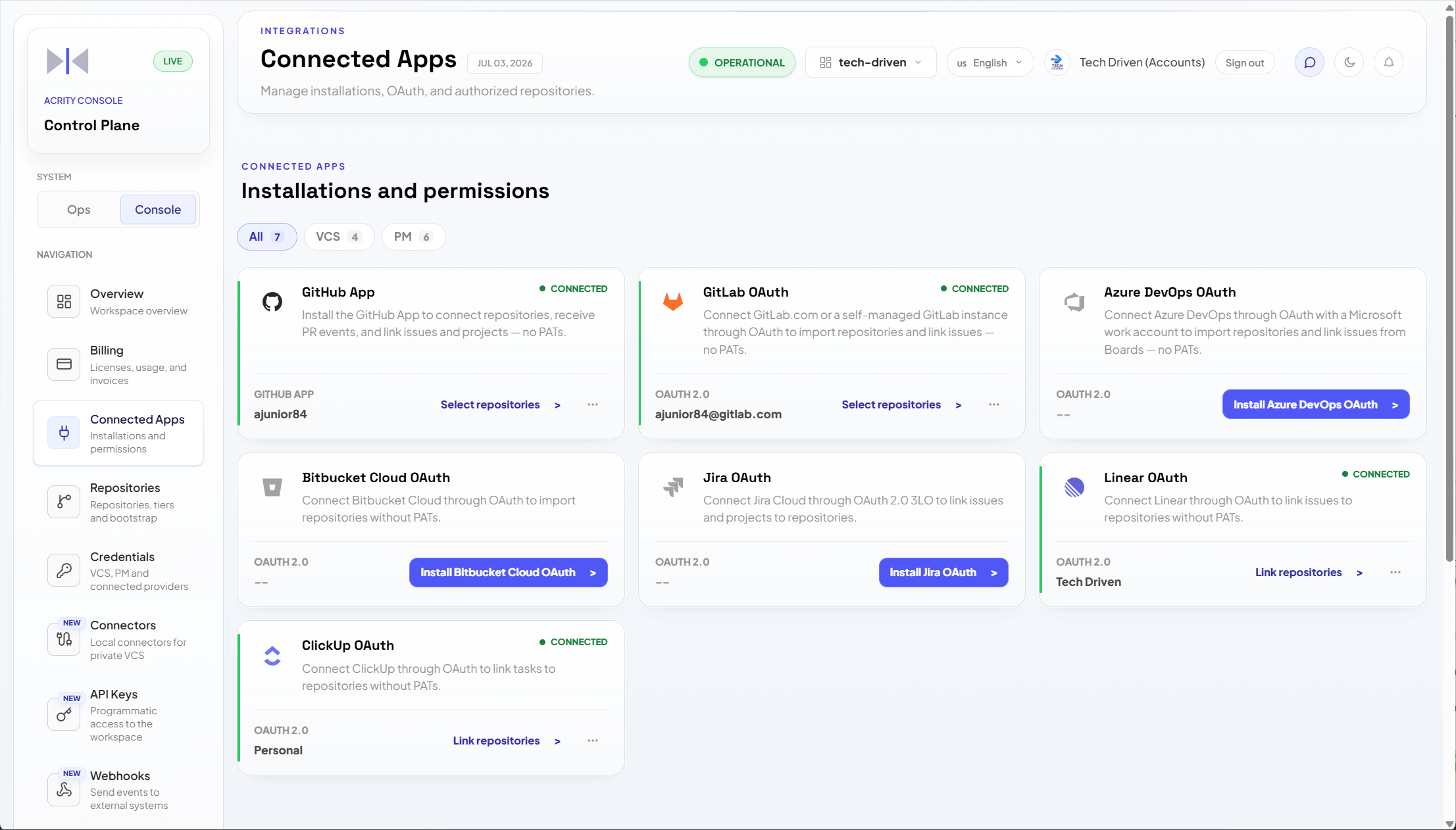
Connected Apps are integrations authorized through OAuth or an official provider app. They simplify repository connection and reduce the need for manual tokens. Installing one is an authorization handoff: you never register or create an app yourself—Acrity provides the app, and you approve the access it needs on the provider.
Use `Console > Connected Apps` to install, reauthorize, disconnect, and view providers connected to the workspace.
 ## When to use
Use Connected Apps when:
* the provider offers OAuth or a compatible official app;
* you want to avoid long-lived manual tokens;
* multiple repositories will be connected from the same installation;
* the organization wants to control permissions in the provider itself;
* you need to reconnect repositories after permission changes.
Use `Console > Credentials` when a provider or use case requires a manual credential.
## Common providers
| Provider | Typical use |
| ------------ | --------------------------------------------------------------------------------------- |
| GitHub | Repositories, pull requests, permissions through GitHub App or connected authorization. |
| GitLab | Repositories and merge requests in compatible environments. |
| Bitbucket | Repositories and pull requests in Bitbucket workspaces. |
| Azure DevOps | Repositories and pull requests in Azure DevOps organizations. |
| Jira | Task management, PM fields, and comments associated with the review flow. |
| Linear | Issues and product context for teams that use Linear. |
| ClickUp | Tasks and product context for teams that use ClickUp. |
## Install an app
Installing a connected app is an OAuth/app authorization handoff. You choose a provider, Acrity sends you to that provider to sign in and approve access, you pick which repositories the app can reach, and the provider returns you to the Console. You never register or create an app on the provider yourself—you only authorize the app Acrity already publishes.
```mermaid theme={null}
flowchart LR
A[Choose a provider
## When to use
Use Connected Apps when:
* the provider offers OAuth or a compatible official app;
* you want to avoid long-lived manual tokens;
* multiple repositories will be connected from the same installation;
* the organization wants to control permissions in the provider itself;
* you need to reconnect repositories after permission changes.
Use `Console > Credentials` when a provider or use case requires a manual credential.
## Common providers
| Provider | Typical use |
| ------------ | --------------------------------------------------------------------------------------- |
| GitHub | Repositories, pull requests, permissions through GitHub App or connected authorization. |
| GitLab | Repositories and merge requests in compatible environments. |
| Bitbucket | Repositories and pull requests in Bitbucket workspaces. |
| Azure DevOps | Repositories and pull requests in Azure DevOps organizations. |
| Jira | Task management, PM fields, and comments associated with the review flow. |
| Linear | Issues and product context for teams that use Linear. |
| ClickUp | Tasks and product context for teams that use ClickUp. |
## Install an app
Installing a connected app is an OAuth/app authorization handoff. You choose a provider, Acrity sends you to that provider to sign in and approve access, you pick which repositories the app can reach, and the provider returns you to the Console. You never register or create an app on the provider yourself—you only authorize the app Acrity already publishes.
```mermaid theme={null}
flowchart LR
A[Choose a provider
in Connected Apps] --> B[Authorize on the provider]
B --> C[Select repositories
to grant access]
C --> D[Approve and return
to the Console]
```
Go to `Console > Connected Apps`.
Select the provider you want to connect to the workspace.
Acrity redirects you to the provider. Sign in and confirm the correct organization, workspace, or installation.
In the provider, choose which repositories the app can access. You grant access to the app—there is nothing to register.
Approve the requested permissions. The provider returns you to the Console; confirm that the installation appears as active.
After approval, use the list of authorized repositories to connect the target projects (see [Connect repositories from an installation](#connect-repositories-from-an-installation)).
## Reauthorize
Reauthorize an installation when:
* the provider indicates insufficient permission;
* the organization changed access policies;
* an administrator removed permissions in the provider;
* new repositories do not appear in the list;
* the Console shows an invalid or revoked app alert.
Reauthorizing runs the same authorization handoff as installing: Acrity sends you back to the provider to re-approve access and adjust which repositories the app can reach. You do not register anything.
1. Go to `Console > Connected Apps`.
2. Open the provider installation.
3. Choose `Reauthorize`.
4. On the provider, approve the requested permissions and update repository access as needed.
5. Return to the Console and confirm the status.
## Connect repositories from an installation
After the app is active:
1. Go to `Console > Connected Apps`.
2. Open the provider installation.
3. Review the repositories the app was authorized to access on the provider.
4. Select the target repositories.
5. Confirm the connection.
6. Complete settings in `Console > Repositories`.
## Disconnect an installation
Disconnecting removes Acrity's link to the selected installation.
Before disconnecting:
* review repositories that depend on the installation;
* confirm whether an alternative credential or connector exists;
* notify Workspace admins;
* review webhooks or permissions kept in the provider.
Repositories that depend on the installation can stop receiving reviews until they are reconnected through another method.
## Connected Apps vs credentials
| Option | Best when | Note |
| ----------------- | --------------------------------------------------------------------------------- | --------------------------------------------------------- |
| Connected App | The provider offers OAuth installation or an official app. | Preferred for centralized management and reauthorization. |
| Manual credential | The use case requires a token, password, app password, or specific key. | Use minimum scope and review validity periodically. |
| Local connector | The VCS is private, self-hosted, or must be accessed from the customer's network. | VCS access is mediated by a local component. |
## Common issues
| Symptom | What to check |
| ----------------------------- | ------------------------------------------------------------------------------------ |
| Installation appears invalid | Reauthorize the app and confirm permissions in the provider. |
| Repository does not appear | Check whether the repository was selected/authorized in the provider. |
| Provider shows callback error | Confirm that you are using the correct Acrity environment and provider app. |
| I cannot disconnect | Check your workspace role and pending repositories associated with the installation. |
| Insufficient permissions | Ask a provider owner to grant the minimum required access. |
## Security
Acrity requests only the permissions required to run enabled flows. Tokens and credentials associated with Connected Apps follow the policy described in `Security > Credentials and tokens`.