> ## Documentation Index
> Fetch the complete documentation index at: https://docs.acrity.io/llms.txt
> Use this file to discover all available pages before exploring further.
# Credentials
> Register and validate manual credentials used by providers connected to Acrity.
Manual credentials allow Acrity to access providers when a connected app or local connector is not the best option.
Use `Console > Credentials` to create, edit, validate, resync, and remove workspace credentials.
## When to use
Use manual credentials when:
* the provider does not offer a connected app flow for the use case;
* a repository or PM requires a specific token;
* the organization needs to separate credentials by team, project, or environment;
* an existing integration still depends on a manual token.
When available, prefer `Console > Connected Apps` for providers with managed authorization or `Console > Connectors` for private and self-hosted VCS providers.
## Who can access
Working with credentials requires a Workspace admin (platform admins also have access). Roles are fixed capability sets defined by Acrity, so other roles do not see this menu.
## Main fields
| Field | Purpose |
| ----------------- | ----------------------------------------------------------------------------------------------- |
| Name | Identifies the credential in the Console. Use clear names, such as team, provider, and purpose. |
| Provider | Defines which fields will be requested and where the credential can be used. |
| Sensitive fields | Tokens, passwords, app passwords, or secrets required by the provider. |
| Metadata | Non-sensitive information used for identification, scope, or connection. |
| Validation status | Indicates whether the credential is valid, invalid, pending, or needs another check. |
## Create a credential
Go to `Console > Credentials`.
Choose `New credential`.
Choose the correct provider. The screen will display the fields required for that provider.
Enter the name and requested fields. Use the smallest possible scope in the source provider.
Run validation when available. Fix messages before using the credential in repositories.
Save the credential and associate it with required repositories or integrations.
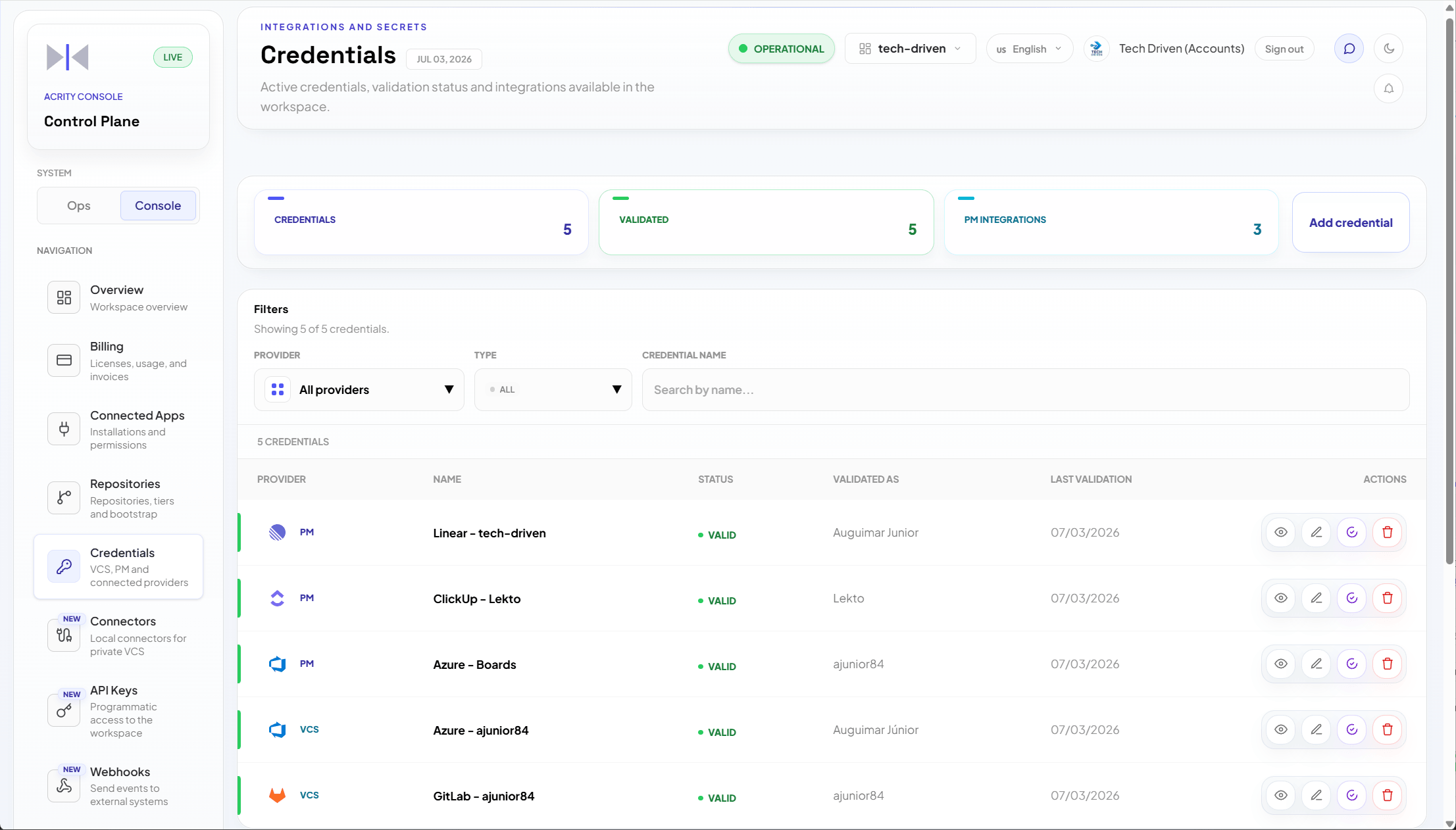 ## Edit a credential
When editing a credential, sensitive fields can appear empty or masked. This prevents secrets from being exposed in the Console.
To change a secret:
1. Go to `Console > Credentials`.
2. Open the credential.
3. Choose edit.
4. Fill in the sensitive field that will be changed.
5. Save and validate.
If you do not want to change a secret, leave the field as instructed by the screen.
## Validate and resync
Use validation when:
* the credential was just created;
* the provider changed permissions;
* a review or connection failed;
* the Console shows an invalid credential alert;
* the token was rotated in the provider.
Use resync when the credential is valid, but provider metadata, permissions, or objects need to be refreshed.
## Associate credentials with repositories
Credentials can be chosen when connecting or editing repositories.
Recommended flow:
1. Create and validate the credential in `Console > Credentials`.
2. Go to `Console > Repositories`.
3. Connect or open a repository.
4. Select the appropriate credential for VCS or PM.
5. Save and check the repository status.
## Best practices
* Use a name that indicates provider, team, and purpose.
* Avoid personal credentials when the organization can use a service account.
* Apply the minimum permission set in the provider.
* Define a periodic rotation process.
* Remove unused credentials.
* Prefer connected apps or local connectors when they fit the use case.
## Security
Sensitive fields are not shown in plaintext after registration. Credential storage and protection are described in `Security > Credentials and tokens`.
Do not paste tokens into descriptions, credential names, repository names, webhook templates, or other fields that are not intended for secrets.
## Common issues
| Symptom | What to check |
| ----------------------------------------- | ------------------------------------------------------------------------------------------ |
| Credential invalid | Check token, expiration, permissions, and organization/project in the provider. |
| Sensitive field disappeared while editing | This is expected behavior. Enter a new value only if you want to change the secret. |
| Repository cannot use credential | Check whether the credential is for the correct provider and has access to the repository. |
| Validation remains pending | Wait a few moments and try again. If it persists, check provider status. |
| I do not see the desired provider | See `Console > Connected Apps` or confirm provider compatibility with support. |
## Edit a credential
When editing a credential, sensitive fields can appear empty or masked. This prevents secrets from being exposed in the Console.
To change a secret:
1. Go to `Console > Credentials`.
2. Open the credential.
3. Choose edit.
4. Fill in the sensitive field that will be changed.
5. Save and validate.
If you do not want to change a secret, leave the field as instructed by the screen.
## Validate and resync
Use validation when:
* the credential was just created;
* the provider changed permissions;
* a review or connection failed;
* the Console shows an invalid credential alert;
* the token was rotated in the provider.
Use resync when the credential is valid, but provider metadata, permissions, or objects need to be refreshed.
## Associate credentials with repositories
Credentials can be chosen when connecting or editing repositories.
Recommended flow:
1. Create and validate the credential in `Console > Credentials`.
2. Go to `Console > Repositories`.
3. Connect or open a repository.
4. Select the appropriate credential for VCS or PM.
5. Save and check the repository status.
## Best practices
* Use a name that indicates provider, team, and purpose.
* Avoid personal credentials when the organization can use a service account.
* Apply the minimum permission set in the provider.
* Define a periodic rotation process.
* Remove unused credentials.
* Prefer connected apps or local connectors when they fit the use case.
## Security
Sensitive fields are not shown in plaintext after registration. Credential storage and protection are described in `Security > Credentials and tokens`.
Do not paste tokens into descriptions, credential names, repository names, webhook templates, or other fields that are not intended for secrets.
## Common issues
| Symptom | What to check |
| ----------------------------------------- | ------------------------------------------------------------------------------------------ |
| Credential invalid | Check token, expiration, permissions, and organization/project in the provider. |
| Sensitive field disappeared while editing | This is expected behavior. Enter a new value only if you want to change the secret. |
| Repository cannot use credential | Check whether the credential is for the correct provider and has access to the repository. |
| Validation remains pending | Wait a few moments and try again. If it persists, check provider status. |
| I do not see the desired provider | See `Console > Connected Apps` or confirm provider compatibility with support. |