> ## Documentation Index
> Fetch the complete documentation index at: https://docs.acrity.io/llms.txt
> Use this file to discover all available pages before exploring further.
# Console overview
> Understand navigation, access roles, the Overview dashboard, and the recommended flow for administering Acrity.
The Acrity Console is the administrative area you use to configure workspaces, connect repositories, define review policies, manage credentials, track billing, and view operational audit.
This page is the general map. Specific pages explain each area in detail.
## Who uses the Console
| Role | Typical use |
| --------------- | -------------------------------------------------------------------------------------------------------------------------------- |
| Workspace admin | Configures the workspace, integrations, repositories, credentials, connectors, webhooks, API Keys, members, and review policies. |
| Billing Manager | Tracks workspace billing, wallet, invoices, trial, and spend caps. |
| Maintainer | Tracks workspace information, repositories, and review operations. |
| Member | Views the workspace and review information available to them. |
Roles are fixed capability sets defined by Acrity. They are not configured per organization, so the same role grants the same access in every workspace.
The interface shows only the menus allowed for your role and the selected workspace.
## Console navigation
The left navigation lists the areas you can open in the selected workspace.
| Menu | Purpose |
| ----------------- | ---------------------------------------------------------------------------------------------------------------------------- |
| Overview | View overall workspace state, the setup checklist, quick actions, and the inbound webhook card. |
| Billing | Manage trial, wallet, usage, invoices, top-ups, and spend caps. |
| Connected Apps | Install and manage OAuth integrations or official provider apps. |
| Repositories | Connect repositories and configure review, branch rules, project management links, VCS webhooks, and architecture bootstrap. |
| Credentials | Register manual provider credentials when a Connected App is not used. |
| Connectors | Configure local connectors that reach private or self-hosted VCS providers. |
| API Keys | Create keys for programmatic use of the Acrity public API. |
| Webhooks | Send workspace events to external systems. |
| Workspace Members | Invite people, change roles, and remove workspace access. |
| Docs | Open the Acrity documentation. |
| Policy Engine | Configure workspace-level review policies. |
| Audit Trail | View technical and administrative event history, diagnostics, and audit details for the workspace. |
Repositories, Policy Engine, Webhooks, API Keys, Audit Trail, Credentials, and Connectors require a Workspace admin. Platform admins also have access to these areas.
## Adjacent destinations
Two related areas are reached from outside the left navigation:
| Destination | How you reach it | What it is for |
| ----------------------------------------- | ----------------------------------------------------------- | ---------------------------------------------------------------------------------------------------- |
| [Ops dashboard](/en/guides/ops-dashboard) | Open it from the Console system switcher. | Track review status, decisions, findings, and operational follow-up. |
| Workspace settings | Open it from the Overview dashboard or the Workspaces list. | Review and edit the settings of the selected workspace, such as name, language, and allowed domains. |
## The Overview dashboard
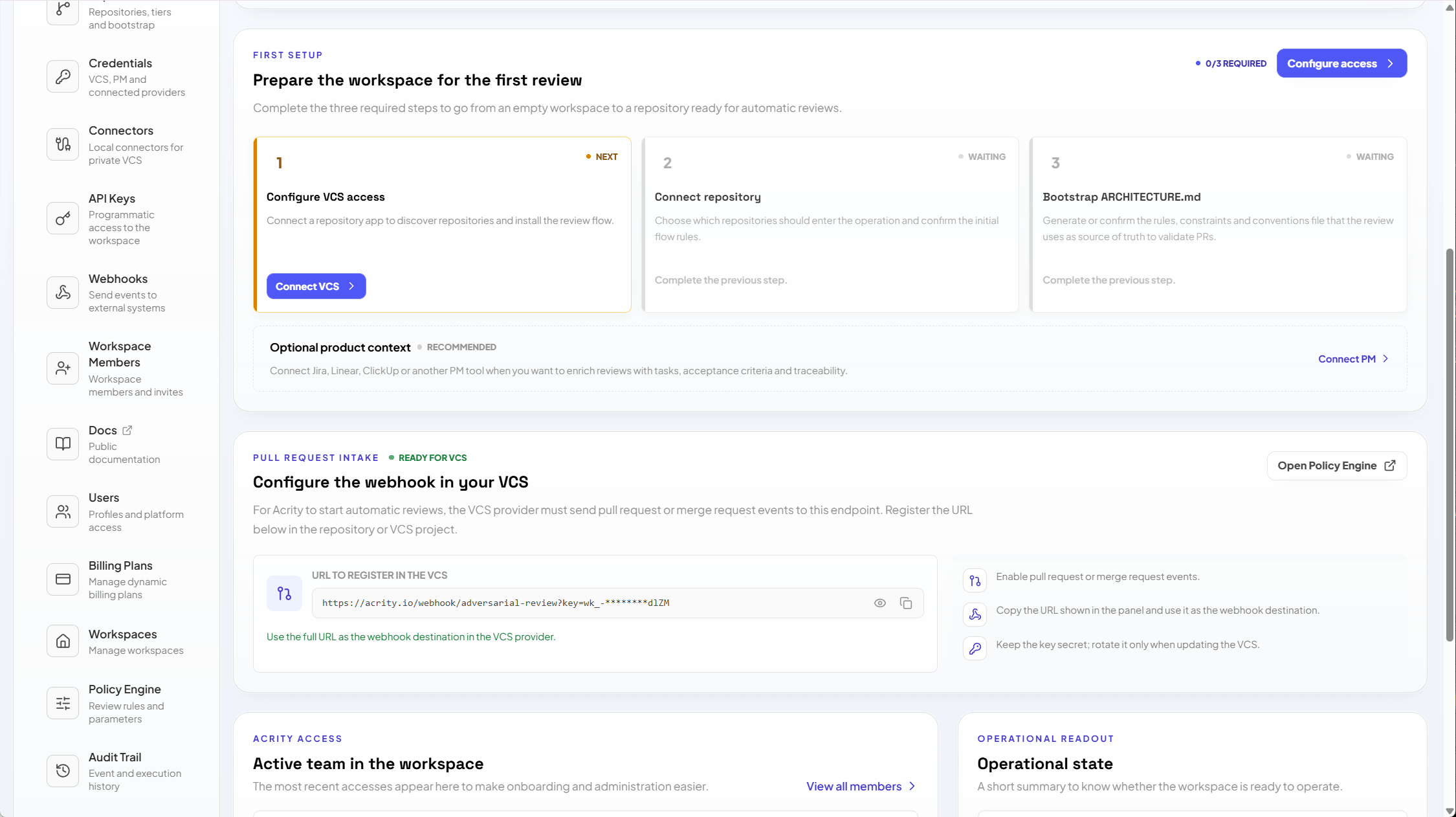
Overview is the first screen you see for a workspace. It orients you and surfaces the next action.
 ### First-time setup checklist
For a new workspace, the dashboard shows a setup checklist that walks you through the minimum needed to receive reviews:
Install a Connected App, or register a manual credential or local connector, so Acrity can reach your Git provider.
Add at least one repository and confirm its initial review settings.
Generate the `ARCHITECTURE.md` baseline for the repository so reviews have architectural context.
Each item links to the area where you complete it, and the checklist marks steps as done as you progress.
### Quick actions
Quick actions are shortcuts to the tasks you run most often, such as connecting a repository, inviting a member, opening the Policy Engine, or jumping to Billing. They target the same areas as the left navigation, so you never have to hunt for the starting point.
### Status tiles
Status tiles summarize the workspace at a glance and highlight anything that needs attention, including:
* connected repositories and how many are ready for review;
* Connected Apps, credentials, and connectors, with any that need reauthorization or revalidation;
* recent review activity;
* billing state, including trial, wallet balance, and spend cap.
Select a tile to open the matching area.
### Inbound webhook and review triggers
The dashboard shows an inbound webhook card with the endpoint URL and a signing secret. This is how your Git provider tells Acrity that a pull or merge request needs a review.
* When you use a Connected App, this webhook is registered for you.
* When you use a manual credential or a local connector, copy the URL and signing secret into your provider's webhook settings.
When a matching event arrives, Acrity verifies the signature with the signing secret and starts a review. The change is processed transiently; for large changes it may be cached at rest for a limited period with automatic expiry (up to 24 hours).
Treat the signing secret like a credential. If it is exposed, rotate it from the same card and update your provider.
## Explore the Console
Connect repositories and set review, branch rules, and architecture bootstrap.
Install OAuth integrations and official provider apps.
Register manual provider credentials when a Connected App is not used.
Reach private or self-hosted VCS providers with local connectors.
Configure workspace-level review policies.
Invite people, change roles, and manage access.
Send workspace events to external systems.
Create keys for the Acrity public API.
Manage trial, wallet, usage, invoices, and spend caps.
Review technical and administrative event history.
## Recommended setup flow
Use the workspace selector. Confirm name, description, language, and allowed domains where visible.
Go to `Console > Workspace Members` and add the people responsible for repositories, integrations, and billing.
Use `Console > Connected Apps` for OAuth integrations or official apps. Use `Console > Credentials` when a manual credential is required.
Go to `Console > Repositories > Connect repository`, choose the source, and review initial settings.
Use `Console > Policy Engine` for workspace defaults and `Console > Repositories > Repository detail > Review` for repository-level exceptions.
Use `Console > Webhooks` and `Console > API Keys` when external systems need to receive events or query the public API.
Go to `Console > Billing` to check trial, wallet, spend cap, and usage history.
## Attention indicators
The Console highlights menus with alerts when there are pending actions, such as:
* credentials that are invalid, pending, or need validation;
* repositories not yet ready for review;
* Connected Apps that require reauthorization;
* connectors that are offline or whose last revalidation failed;
* suspended billing, an ended trial, insufficient wallet, or a reached spend cap.
When you see an alert, open the indicated menu and follow the on-screen messages. They prioritize the nearest action to restore operation.
## Where to configure each area
| I need to configure... | Go to... |
| --------------------------------------------------------------------- | --------------------------------------------- |
| Workspace name, language, or domains | Workspace settings (from the Workspaces list) |
| People and roles | `Console > Workspace Members` |
| GitHub, GitLab, Bitbucket, Azure DevOps, Jira, Linear, or ClickUp app | `Console > Connected Apps` |
| Manual provider token | `Console > Credentials` |
| Private or self-hosted VCS | `Console > Connectors` |
| Repositories and branch rules | `Console > Repositories` |
| Default review policy | `Console > Policy Engine` |
| Repository-level review exception | `Console > Repositories > Detail > Review` |
| Review tracking and outcomes | [Ops dashboard](/en/guides/ops-dashboard) |
| Events for external systems | `Console > Webhooks` |
| Programmatic access | `Console > API Keys` |
| Trial, wallet, usage, and invoices | `Console > Billing` |
| Technical event history and diagnostics | `Console > Audit Trail` |
## Security and data handling
Console screens show only what is needed to administer Acrity. Sensitive data, credentials, tokens, and keys follow the policies described in [Data handling](/en/security/data-handling) and [Credentials and tokens](/en/security/credentials-and-tokens).
To reduce operational exposure, prefer Connected Apps or local connectors when available, limit API Key scopes, and periodically review active members, credentials, and webhooks.
### First-time setup checklist
For a new workspace, the dashboard shows a setup checklist that walks you through the minimum needed to receive reviews:
Install a Connected App, or register a manual credential or local connector, so Acrity can reach your Git provider.
Add at least one repository and confirm its initial review settings.
Generate the `ARCHITECTURE.md` baseline for the repository so reviews have architectural context.
Each item links to the area where you complete it, and the checklist marks steps as done as you progress.
### Quick actions
Quick actions are shortcuts to the tasks you run most often, such as connecting a repository, inviting a member, opening the Policy Engine, or jumping to Billing. They target the same areas as the left navigation, so you never have to hunt for the starting point.
### Status tiles
Status tiles summarize the workspace at a glance and highlight anything that needs attention, including:
* connected repositories and how many are ready for review;
* Connected Apps, credentials, and connectors, with any that need reauthorization or revalidation;
* recent review activity;
* billing state, including trial, wallet balance, and spend cap.
Select a tile to open the matching area.
### Inbound webhook and review triggers
The dashboard shows an inbound webhook card with the endpoint URL and a signing secret. This is how your Git provider tells Acrity that a pull or merge request needs a review.
* When you use a Connected App, this webhook is registered for you.
* When you use a manual credential or a local connector, copy the URL and signing secret into your provider's webhook settings.
When a matching event arrives, Acrity verifies the signature with the signing secret and starts a review. The change is processed transiently; for large changes it may be cached at rest for a limited period with automatic expiry (up to 24 hours).
Treat the signing secret like a credential. If it is exposed, rotate it from the same card and update your provider.
## Explore the Console
Connect repositories and set review, branch rules, and architecture bootstrap.
Install OAuth integrations and official provider apps.
Register manual provider credentials when a Connected App is not used.
Reach private or self-hosted VCS providers with local connectors.
Configure workspace-level review policies.
Invite people, change roles, and manage access.
Send workspace events to external systems.
Create keys for the Acrity public API.
Manage trial, wallet, usage, invoices, and spend caps.
Review technical and administrative event history.
## Recommended setup flow
Use the workspace selector. Confirm name, description, language, and allowed domains where visible.
Go to `Console > Workspace Members` and add the people responsible for repositories, integrations, and billing.
Use `Console > Connected Apps` for OAuth integrations or official apps. Use `Console > Credentials` when a manual credential is required.
Go to `Console > Repositories > Connect repository`, choose the source, and review initial settings.
Use `Console > Policy Engine` for workspace defaults and `Console > Repositories > Repository detail > Review` for repository-level exceptions.
Use `Console > Webhooks` and `Console > API Keys` when external systems need to receive events or query the public API.
Go to `Console > Billing` to check trial, wallet, spend cap, and usage history.
## Attention indicators
The Console highlights menus with alerts when there are pending actions, such as:
* credentials that are invalid, pending, or need validation;
* repositories not yet ready for review;
* Connected Apps that require reauthorization;
* connectors that are offline or whose last revalidation failed;
* suspended billing, an ended trial, insufficient wallet, or a reached spend cap.
When you see an alert, open the indicated menu and follow the on-screen messages. They prioritize the nearest action to restore operation.
## Where to configure each area
| I need to configure... | Go to... |
| --------------------------------------------------------------------- | --------------------------------------------- |
| Workspace name, language, or domains | Workspace settings (from the Workspaces list) |
| People and roles | `Console > Workspace Members` |
| GitHub, GitLab, Bitbucket, Azure DevOps, Jira, Linear, or ClickUp app | `Console > Connected Apps` |
| Manual provider token | `Console > Credentials` |
| Private or self-hosted VCS | `Console > Connectors` |
| Repositories and branch rules | `Console > Repositories` |
| Default review policy | `Console > Policy Engine` |
| Repository-level review exception | `Console > Repositories > Detail > Review` |
| Review tracking and outcomes | [Ops dashboard](/en/guides/ops-dashboard) |
| Events for external systems | `Console > Webhooks` |
| Programmatic access | `Console > API Keys` |
| Trial, wallet, usage, and invoices | `Console > Billing` |
| Technical event history and diagnostics | `Console > Audit Trail` |
## Security and data handling
Console screens show only what is needed to administer Acrity. Sensitive data, credentials, tokens, and keys follow the policies described in [Data handling](/en/security/data-handling) and [Credentials and tokens](/en/security/credentials-and-tokens).
To reduce operational exposure, prefer Connected Apps or local connectors when available, limit API Key scopes, and periodically review active members, credentials, and webhooks.