> ## Documentation Index
> Fetch the complete documentation index at: https://docs.acrity.io/llms.txt
> Use this file to discover all available pages before exploring further.
# Security scans
> How to configure and track dependency vulnerability scans by repository.
Security scans help you identify vulnerabilities in the dependencies of your connected repositories. When scans are available for a repository, the `Security scans` section appears on the repository detail page.
## Where to configure
Security scans are configured under `Repositories`, which requires a Workspace admin (platform admins also have access). Open the target repository and find the `Security scans` section.
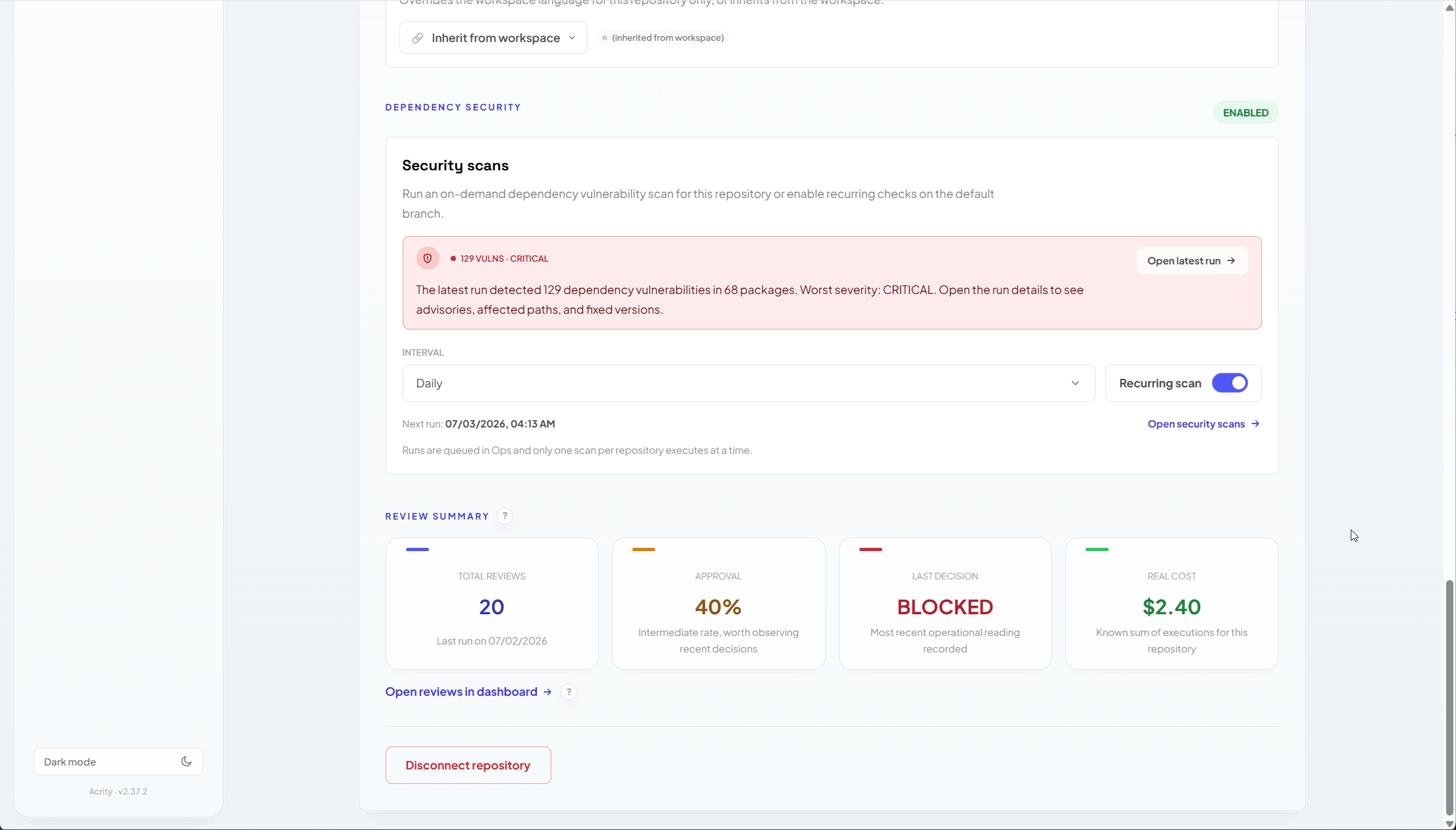 From this section you can:
* enable or disable recurring scans;
* choose the scan interval;
* start an on-demand scan when allowed;
* open the latest result;
* track the vulnerability count, affected packages, and worst severity.
## What appears in the result
A scan result can include:
| Information | Purpose |
| ---------------- | ------------------------------------- |
| affected package | dependency with a known vulnerability |
| current version | version detected in the repository |
| fixed version | recommended version when available |
| severity | remediation priority |
| advisory | public vulnerability reference |
| affected paths | where the dependency appears |
## How to enable
Go to `Repositories` and select the repository you want to scan.
Confirm the section is available for the repository's provider.
Turn on recurring scans and choose the interval for the main branch.
Confirm the change, then track the next scan from the repository detail page.
## On-demand scans
When on-demand scans are available, use one to validate a fix, review a newly connected repository, or investigate an alert.
For automations, use API keys with:
* `SecurityScans.Read` to list and retrieve results;
* `SecurityScans.Write` to start scans.
## Common limitations
A scan might not run when:
* the repository is not ready yet;
* the linked credential lost permission;
* the provider does not support the required action;
* the repository does not contain recognized dependency manifests;
* another scan is already running for the same repository.
Use the repository detail page, the linked credential, and `Audit Trail` to investigate.
From this section you can:
* enable or disable recurring scans;
* choose the scan interval;
* start an on-demand scan when allowed;
* open the latest result;
* track the vulnerability count, affected packages, and worst severity.
## What appears in the result
A scan result can include:
| Information | Purpose |
| ---------------- | ------------------------------------- |
| affected package | dependency with a known vulnerability |
| current version | version detected in the repository |
| fixed version | recommended version when available |
| severity | remediation priority |
| advisory | public vulnerability reference |
| affected paths | where the dependency appears |
## How to enable
Go to `Repositories` and select the repository you want to scan.
Confirm the section is available for the repository's provider.
Turn on recurring scans and choose the interval for the main branch.
Confirm the change, then track the next scan from the repository detail page.
## On-demand scans
When on-demand scans are available, use one to validate a fix, review a newly connected repository, or investigate an alert.
For automations, use API keys with:
* `SecurityScans.Read` to list and retrieve results;
* `SecurityScans.Write` to start scans.
## Common limitations
A scan might not run when:
* the repository is not ready yet;
* the linked credential lost permission;
* the provider does not support the required action;
* the repository does not contain recognized dependency manifests;
* another scan is already running for the same repository.
Use the repository detail page, the linked credential, and `Audit Trail` to investigate.