

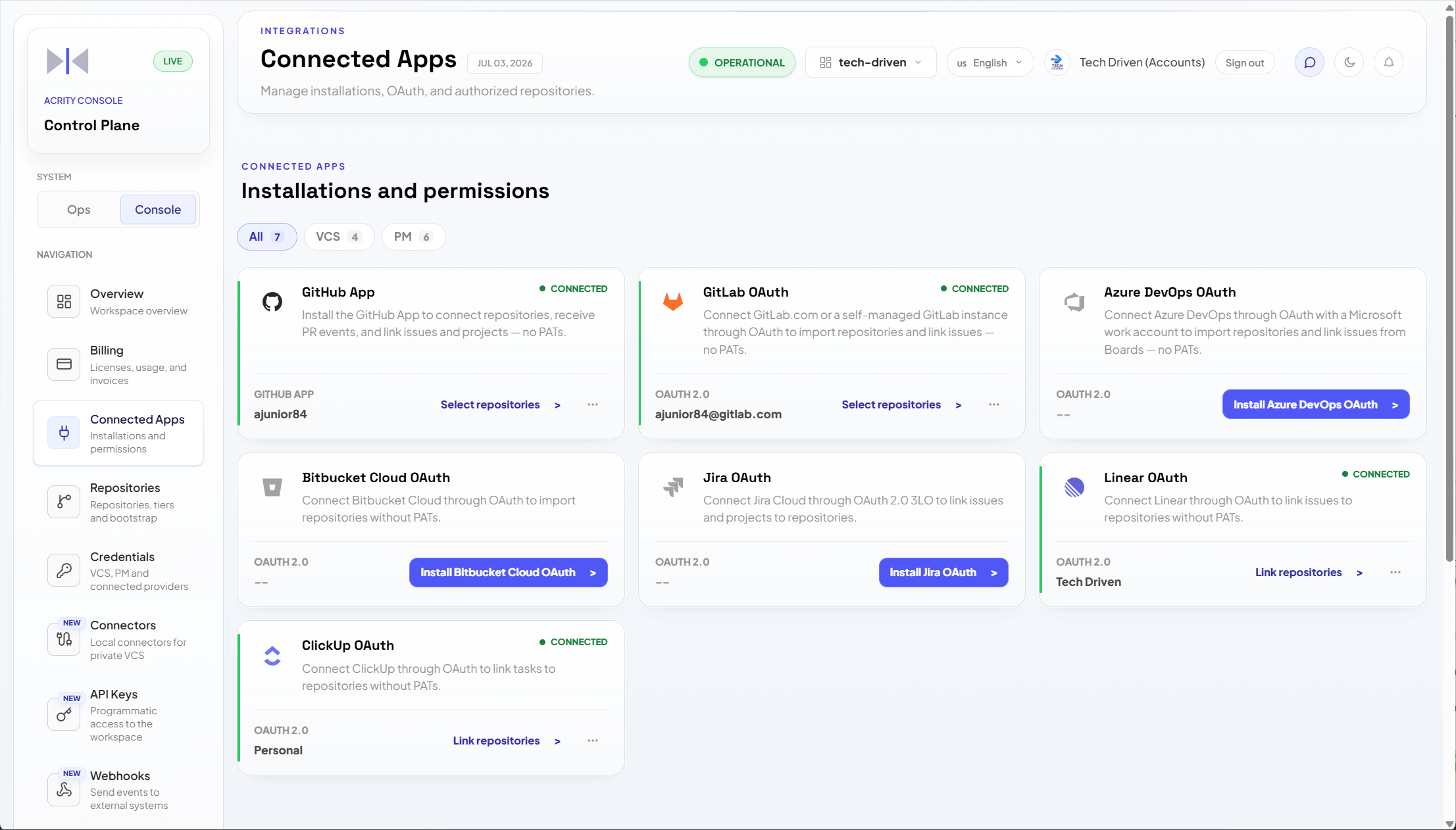
Console > Connected Apps to install, reauthorize, disconnect, and view providers connected to the workspace.
When to use
Use Connected Apps when:- the provider offers OAuth or a compatible official app;
- you want to avoid long-lived manual tokens;
- multiple repositories will be connected from the same installation;
- the organization wants to control permissions in the provider itself;
- you need to reconnect repositories after permission changes.
Console > Credentials when a provider or use case requires a manual credential.
Common providers
Install an app
Installing a connected app is an OAuth/app authorization handoff. You choose a provider, Acrity sends you to that provider to sign in and approve access, you pick which repositories the app can reach, and the provider returns you to the Console. You never register or create an app on the provider yourself—you only authorize the app Acrity already publishes.1
Open Connected Apps
Go to
Console > Connected Apps.2
Choose a provider
Select the provider you want to connect to the workspace.
3
Authorize on the provider
Acrity redirects you to the provider. Sign in and confirm the correct organization, workspace, or installation.
4
Select repositories
In the provider, choose which repositories the app can access. You grant access to the app—there is nothing to register.
5
Approve and return to the Console
Approve the requested permissions. The provider returns you to the Console; confirm that the installation appears as active.
Reauthorize
Reauthorize an installation when:- the provider indicates insufficient permission;
- the organization changed access policies;
- an administrator removed permissions in the provider;
- new repositories do not appear in the list;
- the Console shows an invalid or revoked app alert.
- Go to
Console > Connected Apps. - Open the provider installation.
- Choose
Reauthorize. - On the provider, approve the requested permissions and update repository access as needed.
- Return to the Console and confirm the status.
Connect repositories from an installation
After the app is active:- Go to
Console > Connected Apps. - Open the provider installation.
- Review the repositories the app was authorized to access on the provider.
- Select the target repositories.
- Confirm the connection.
- Complete settings in
Console > Repositories.
Disconnect an installation
Disconnecting removes Acrity’s link to the selected installation. Before disconnecting:- review repositories that depend on the installation;
- confirm whether an alternative credential or connector exists;
- notify Workspace admins;
- review webhooks or permissions kept in the provider.
Connected Apps vs credentials
Common issues
Security
Acrity requests only the permissions required to run enabled flows. Tokens and credentials associated with Connected Apps follow the policy described inSecurity > Credentials and tokens.