

Console > Credentials to create, edit, validate, resync, and remove workspace credentials.
When to use
Use manual credentials when:- the provider does not offer a connected app flow for the use case;
- a repository or PM requires a specific token;
- the organization needs to separate credentials by team, project, or environment;
- an existing integration still depends on a manual token.
Console > Connected Apps for providers with managed authorization or Console > Connectors for private and self-hosted VCS providers.
Who can access
Working with credentials requires a Workspace admin (platform admins also have access). Roles are fixed capability sets defined by Acrity, so other roles do not see this menu.Main fields
Create a credential
1
Open credentials
Go to
Console > Credentials.2
Create new
Choose
New credential.3
Select provider
Choose the correct provider. The screen will display the fields required for that provider.
4
Fill in data
Enter the name and requested fields. Use the smallest possible scope in the source provider.
5
Validate
Run validation when available. Fix messages before using the credential in repositories.
6
Save
Save the credential and associate it with required repositories or integrations.
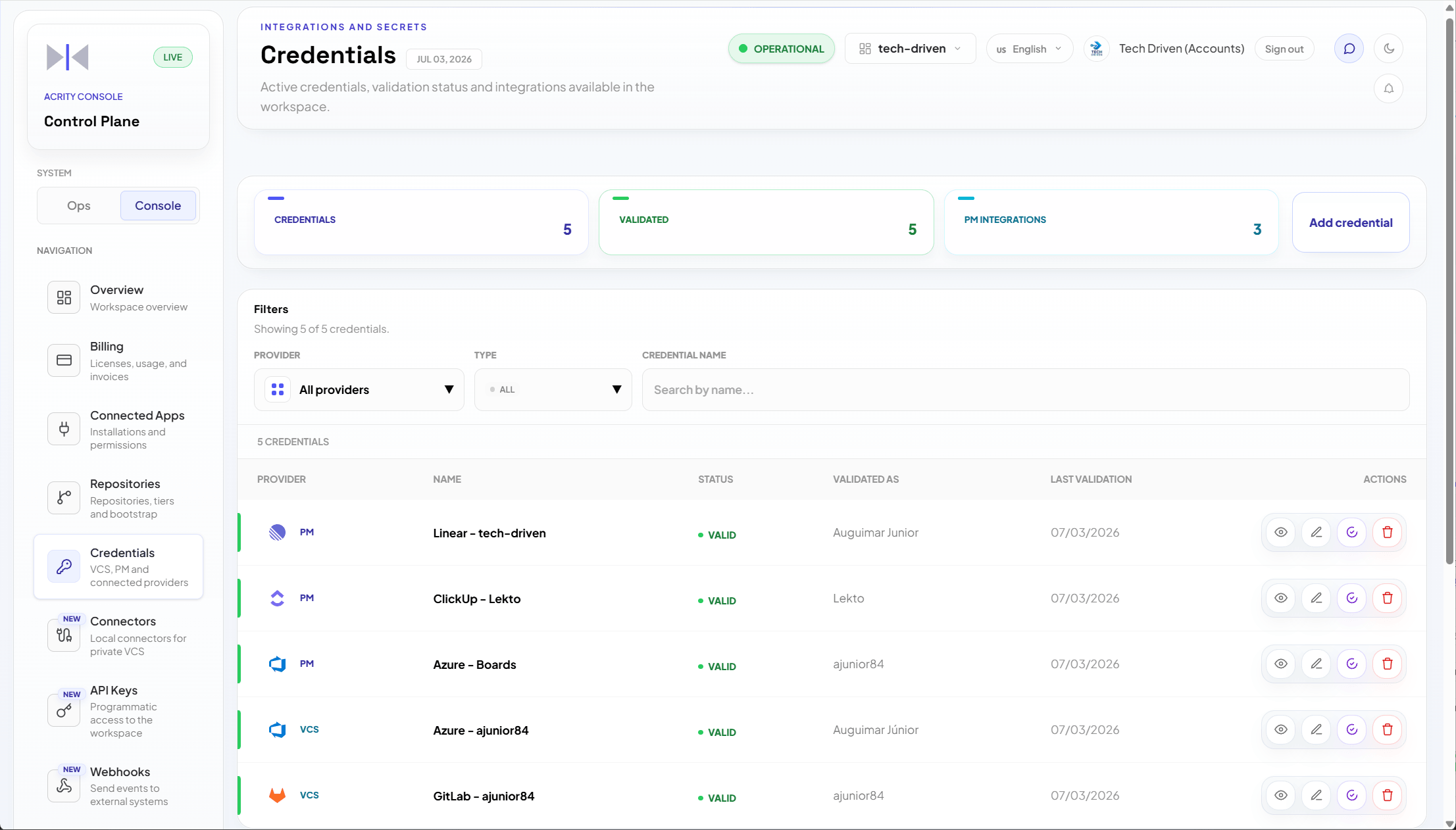
Edit a credential
When editing a credential, sensitive fields can appear empty or masked. This prevents secrets from being exposed in the Console. To change a secret:- Go to
Console > Credentials. - Open the credential.
- Choose edit.
- Fill in the sensitive field that will be changed.
- Save and validate.
Validate and resync
Use validation when:- the credential was just created;
- the provider changed permissions;
- a review or connection failed;
- the Console shows an invalid credential alert;
- the token was rotated in the provider.
Associate credentials with repositories
Credentials can be chosen when connecting or editing repositories. Recommended flow:- Create and validate the credential in
Console > Credentials. - Go to
Console > Repositories. - Connect or open a repository.
- Select the appropriate credential for VCS or PM.
- Save and check the repository status.
Best practices
- Use a name that indicates provider, team, and purpose.
- Avoid personal credentials when the organization can use a service account.
- Apply the minimum permission set in the provider.
- Define a periodic rotation process.
- Remove unused credentials.
- Prefer connected apps or local connectors when they fit the use case.
Security
Sensitive fields are not shown in plaintext after registration. Credential storage and protection are described inSecurity > Credentials and tokens.