

Console > Connectors to create a connector, generate installation secrets, download deployment artifacts, track liveness, and associate repositories.
Connectors require a Workspace admin (platform admins also have access). Roles are fixed capability sets defined by Acrity, so no other role can create, edit, or revalidate a connector.
When to use
Use connectors when:- the VCS is on a private network;
- the provider is self-hosted;
- VCS access must originate from a network controlled by the organization;
- internal policies prevent VCS tokens from being stored in external services;
- you need to go through a corporate proxy or private CA.
Console > Connected Apps first.
How it works at a high level
- A Workspace admin creates the connector in the Console.
- The Console displays installation secrets once.
- The team installs the local component in the organization’s environment.
- The connector opens an egress-only outbound connection to Acrity and reaches the private VCS locally.
- Repositories can then be discovered and associated through the Console.
Security, retention, and data handling details are in
Security > Data handling and Security > Credentials and tokens.Create a connector
1
Open connectors
Go to
Console > Connectors.2
Start wizard
Choose to create a new connector.
3
Enter data
Fill in name, provider, and instance base URL when applicable.
4
Generate secrets
Generate the connector token and relay secret when prompted.
5
Store values
Copy and store the values in a secure vault. They are shown only once.
6
Download artifact
Download the installation format compatible with the organization’s environment.
7
Install and validate
Install the connector, wait for the heartbeat, and run Revalidate when available.
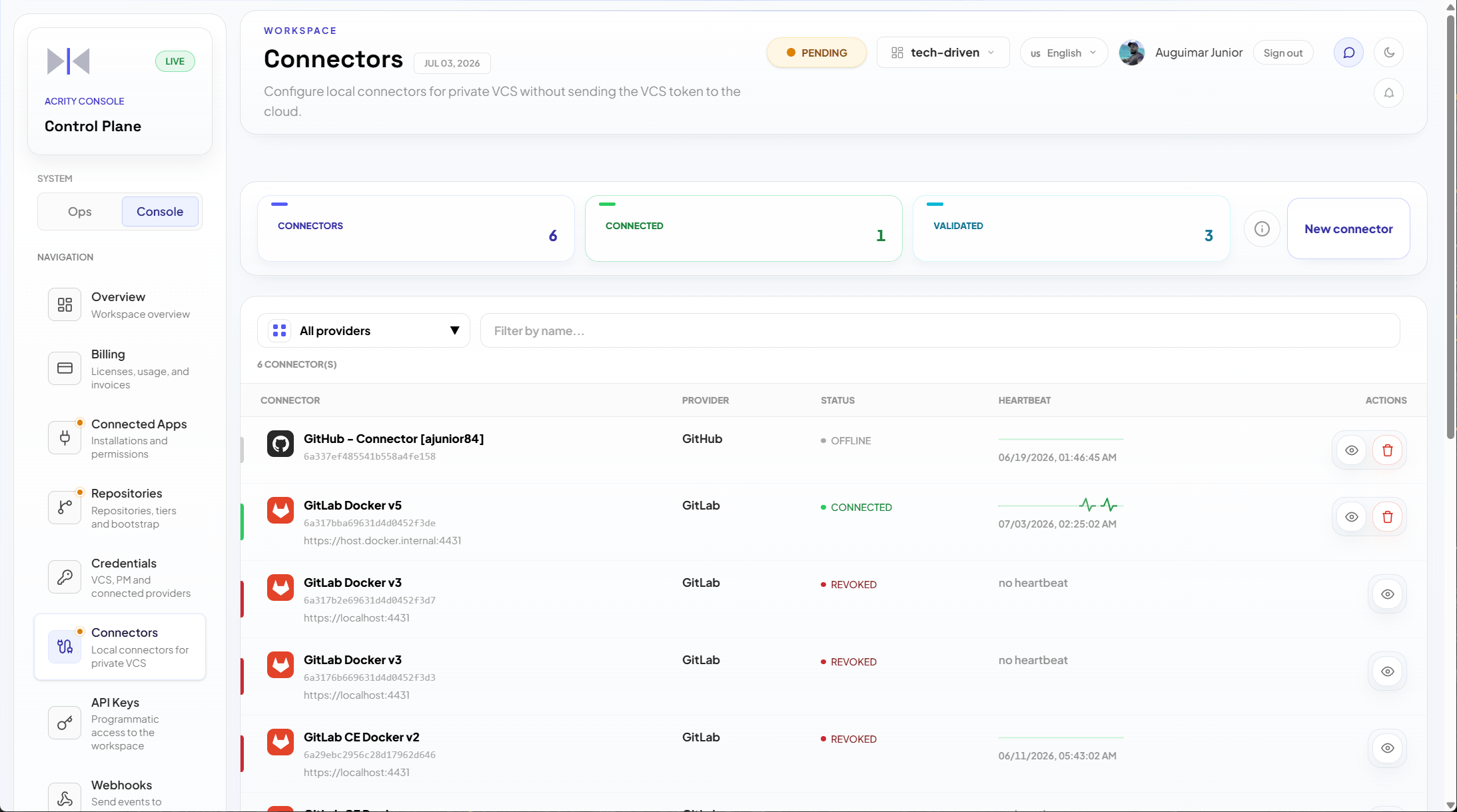
Main fields
Health states
The Console shows a health state for each connector, based on the heartbeat and the most recent Revalidate.
Use Revalidate to force an immediate connectivity and credential check instead of waiting for the next automatic heartbeat. After you correct an issue, run Revalidate to confirm the connector returns to the connected state.
Download installation artifact
After creating the connector:- Go to
Console > Connectors. - Open the connector.
- Choose the deploy format supported by your infrastructure.
- Download the artifact.
- Deliver the package to the team responsible for local installation.
Associate repositories
When the connector is online:- Go to
Console > Repositories > Connect repository. - Choose the connector as the VCS access source.
- Select or enter the target repositories.
- Complete branch, PM, and review settings.
- Save and validate the repository status.
Rotate secrets
Rotate secrets when:- someone with access to the secret left the team;
- exposure is suspected;
- internal policy requires periodic rotation;
- the local environment was recreated;
- the connector will move to different infrastructure.
Common issues
Best practices
- Install connectors in infrastructure administered by the organization.
- Store secrets in a secure vault.
- Use service accounts with minimum scope.
- Monitor the heartbeat and Console alerts.
- Revoke unused connectors.
- Document internally who operates each connector.